If you’ve ever searched “how to get help in Windows”, chances are you ran into a problem—maybe your WiFi stopped working, your PC became slow, or an error suddenly appeared.
The good news is that modern versions of Microsoft Windows—especially Windows 11 and Windows 10—are packed with powerful built-in support tools designed to help you fix issues quickly, even if you’re not tech-savvy.
This ultimate guide will walk you through every possible way to get help in Windows, from basic shortcuts to advanced troubleshooting methods that most users don’t know about.
What Does “Get Help in Windows” Really Mean?
Getting help in Windows means using built-in tools, support apps, or online resources to:
- Fix system errors
- Solve hardware or software issues
- Learn how to use features
- Get step-by-step troubleshooting guidance
- Contact official support
Instead of relying only on Google, Windows already includes everything you need to diagnose and fix most problems.
1. Use the Get Help App (Official Microsoft Support Tool)
The Get Help app is the most powerful built-in support tool in Windows.
How to Open Get Help:
- Click the Start Menu
- Type Get Help
- Press Enter
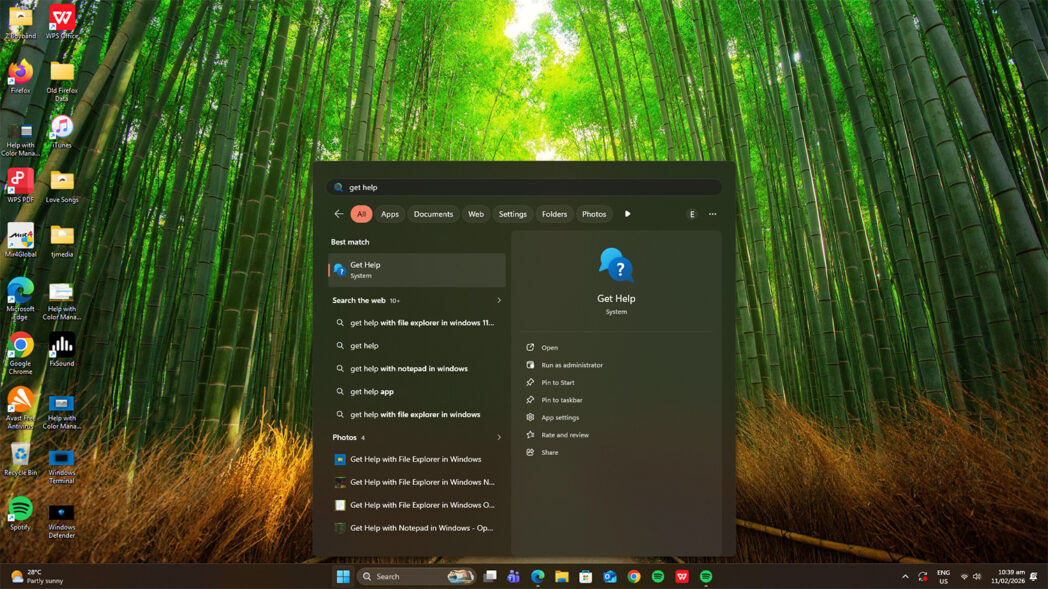
What You Can Do Inside:
- Type your issue (example: “Bluetooth not working”)
- Follow guided troubleshooting steps
- Get links to official solutions
- Chat with a real Microsoft support agent
Example:
If your internet is not working, type:
“Fix WiFi problem”
The app will:
- Ask a few questions
- Run diagnostics
- Suggest fixes
Why it’s powerful: It acts like a personal support assistant inside your PC.
2. Press F1 Key for Instant Help Access
The F1 key has been the universal “help” shortcut in Windows for decades.
What Happens:
- Opens help documentation in your browser
- Redirects to Microsoft support pages
Common Issues:
If pressing F1 opens help randomly:
- Your F1 key might be stuck
- A keyboard shortcut is misconfigured
Laptop Tip: Try Fn + F1 if F1 alone doesn’t work
Best for: Quick help while working in apps
3. Use Windows Search (Fastest Way to Get Help)
The built-in search feature in Windows 11 and Windows 10 is incredibly powerful.
Steps:
- Press Windows + S
- Type your issue:
- “No sound”
- “Printer not working”
- Click the best result
What Happens:
- Windows suggests settings
- Opens troubleshooting tools
- Shows direct solutions
Pro Tip: Use full questions like:
“How to fix Bluetooth in Windows”
Best for: Instant answers without opening multiple apps
4. Run Windows Troubleshooters (Automatic Fix Tools)
Windows includes built-in troubleshooters that can automatically detect and fix issues.
How to Access:
- Press Windows + I
- Go to System
- Click Troubleshoot
- Select Other troubleshooters
Most Useful Troubleshooters:
- Internet connections
- Audio (sound problems)
- Bluetooth
- Windows Update
- Keyboard and hardware
Example:
If your audio is not working:
- Run the Audio Troubleshooter
- Windows will detect the issue and fix it automatically
Best for: Beginners who want automatic solutions
5. Use the Settings App Help Sections
Every section inside Windows Settings includes built-in help options.
Steps:
- Open Settings
- Go to any category (e.g., Network & Internet)
- Look for:
- “Get help”
- “Related settings”
- Help links
These links provide explanations and troubleshooting guides specific to that section.
Best for: Understanding specific features and settings
6. Use Windows Copilot (AI-Powered Help)
Newer versions of Windows include Microsoft Copilot, an AI assistant that can answer questions and guide you.
How to Use:
- Press Windows + C (if available)
- Ask questions like:
- “Why is my PC slow?”
- “How do I connect to WiFi?”
What Copilot Can Do:
- Explain problems in simple terms
- Suggest step-by-step solutions
- Guide you through settings
Best for: Fast, conversational help
7. Use Quick Assist for Remote Help
The Quick Assist feature allows someone else to help you remotely.
How It Works:
- Open Quick Assist
- Click Get Help
- Share the code with a trusted person
- They can view or control your screen
When to Use:
- Helping parents or friends fix issues
- Getting support from IT professionals
Important: Only share access with people you trust
8. Access Microsoft Support Website
The official support website for Microsoft provides:
- Detailed tutorials
- Error code explanations
- Step-by-step fixes
- Community discussions
What You Can Search:
- Error messages
- Device problems
- App issues
Best for: Advanced troubleshooting and official solutions
9. Use Device Manager for Hardware Issues
If your problem is related to hardware (like WiFi, sound, or USB), use Device Manager.
Steps:
- Right-click Start
- Select Device Manager
What You Can Do:
- Update drivers
- Reinstall devices
- Check for errors
Example:
If WiFi is missing:
- Check Network Adapters
- Update or reinstall the driver
Best for: Fixing hardware-related problems
10. Check Task Manager for Performance Issues
If your computer is slow, use Task Manager.
Shortcut:
Press Ctrl + Shift + Esc
What to Check:
- High CPU usage
- Too many startup apps
- Memory usage
Quick Fix:
- Disable unnecessary startup programs
Best for: Speed and performance issues
11. Use System Restore (Advanced Fix)
If something broke after an update or installation, use System Restore.
What It Does:
- Reverts your system to a previous working state
How to Access:
- Search System Restore
- Choose a restore point
Best for: Fixing serious system problems
12. Use Safe Mode for Troubleshooting
Safe Mode starts Windows with minimal drivers.
When to Use:
- PC crashes
- Software conflicts
- Malware issues
Benefit:
Helps identify if a program is causing the problem
Common Windows Problems and How to Fix Them
- Slow Computer
- Open Task Manager
- Disable startup apps
- Run Disk Cleanup
- No Internet
- Restart router
- Run Network Troubleshooter
- Reset network settings
- No Sound
- Check volume
- Run Audio Troubleshooter
- Windows Update Errors
- Run Update Troubleshooter
- Restart PC
Pro Tips to Get Help in Windows Faster
- Always restart your PC first
- Use exact error messages when searching
- Keep Windows updated
- Use built-in tools before third-party apps
- Bookmark helpful guides
Frequently Asked Questions (FAQ)
What is the easiest way to get help in Windows?
Use the Get Help app or Windows Search.
Is help in Windows free?
Yes, most built-in tools and support options are completely free.
Can I fix problems without internet?
Yes, troubleshooters and system tools work offline.
Why does help open automatically?
Usually caused by:
- Stuck F1 key
- Keyboard issue
- Software conflict
Final Thoughts
Knowing how to get help in Windows is one of the most important skills for any computer user.
Instead of feeling stuck or frustrated, you can:
- Use built-in tools like Get Help
- Run automatic troubleshooters
- Ask AI using Copilot
- Get remote help with Quick Assist
- Access official Microsoft support
Whether you’re a beginner or advanced user, Windows gives you everything you need to solve problems quickly and efficiently.